Conference Homepage and Navigation
The conference homepage content changes across the stages, but the layout remains the same. View the most important parts to allow for easy navigation throughout the review process in the screenshot below
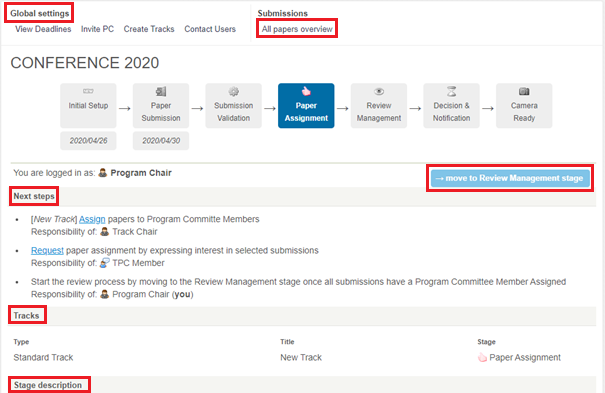
Global settings – On top of the conference homepage, you can find settings that are applicable in each stage – changing deadlines, inviting TPC members, creating new tracks and contacting users are available all throughout the review process.
All Papers Overview – a useful page for monitoring and managing submissions. Here you can see all activity related to each paper.
Next Steps – lists what actions need to be done (and who should do them) in order to move to the next stage.
–>move to {next stage} – becomes dark blue and active only after all mandatory steps have been completed.
Tracks – here you can see all tracks, their types and stages. By clicking on a track, you get to the track homepage. Standard tracks inherit the global settings from the conference, so they are managed from the conference homepage. Custom tracks have their own settings (e.g. deadlines, stages), so these are managed individually after clicking on the track. The details of navigation are in the screenshot below.
Stage description – at the bottom of the page you can find useful information about the objectives of each stage.
Page Flow
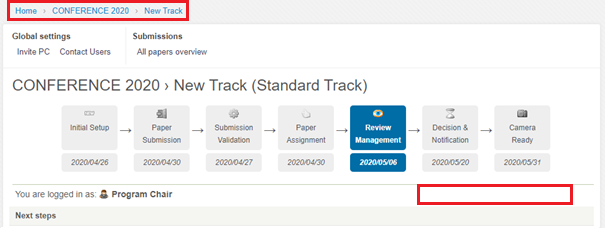
To navigate between pages, use the toolbar above Global settings (screenshot below shows the homepage of the conference).
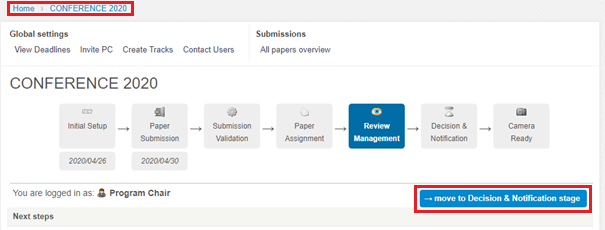
Here, you can see the difference between the Conference (above) and Standard track (below) pages. For Standard tracks, the page does not have the button ‘–>move to {next stage}’ and some global settings are missing. That is because moving forward and managing the settings needs to be done on the level of the entire conference. In the top toolbar, click on conference to return to conference homepage. Custom track pages look the same as the conference, because their setting can be adjusted individually.