
Decision & Notification
The final stage of the review process is deciding which papers to accept and reject. Bear in mind the required acceptance rate to retain quality of the main track and consider potential avenues for papers in alternative tracks (Workshops, Short papers, Posters) – for all EAI conferences, this can be consulted with the Conference Manager.
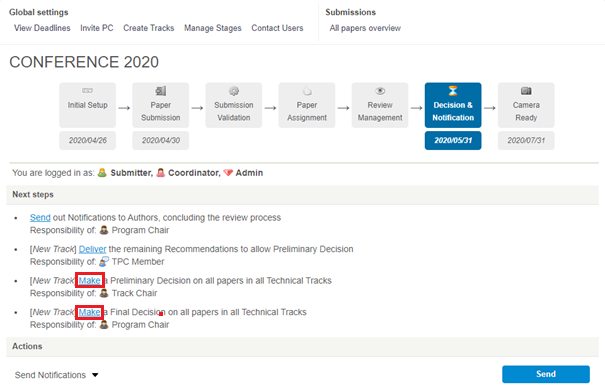
To complete the decisions, click on ‘Make’ a Preliminary Decision or ‘Make‘ a Final Decision to see Review Information for all papers (screenshot below, in red).
Here, the papers will be ordered from highest to lowest, based on their average scores. You can also see TPC member Recommendations – they will be in green for accept, red for reject, or grey if the recommendation has not yet been delivered.
Decisions have 3 stages in Confy+ before author notifications:
Recommendation should be delivered by the TPC member who is handling the paper, based on the reviews and their own expertise. However, if the TPC member has not delivered the recommendation, you as Chair can do this instead. The Recommendation requires evaluating Reviewers, filling in two text boxes (one for the author and one for the Chairs) and selecting Accept/Reject for the paper.
In the Decision window, you can recognize papers without recommendations, since they are marked grey.
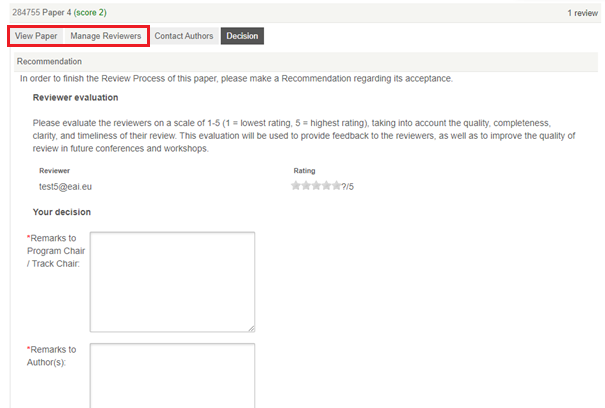
See a screenshot of the form above. In order to complete the paper recommendation and Reviewer evaluation, you can see the paper pdf in ‘View Paper’ and the Reviewer ratings and comments in ‘Manage Reviewers’ (both are highlighted in red). In Manage Reviewers, you can scroll down to view the Review Details in order to read the full reviews. This information enables you to complete the form before moving on to the decisions.
Preliminary decision should be made by the Track Chair. If the General or Program Chair is handling this role, they have to make the preliminary decision, as well as the final decision.
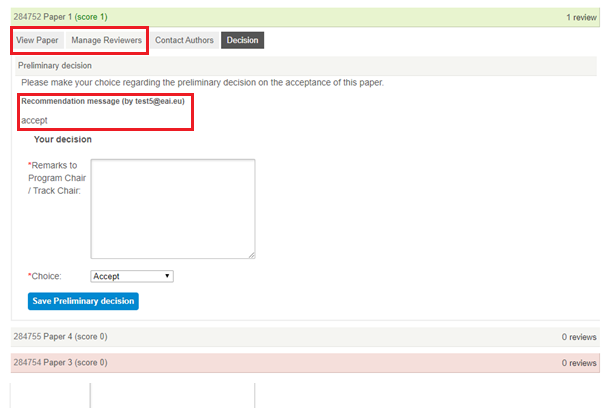
See a screenshot of the form above. The paper will be highlighted (red for reject and green for accept) based on the recommendation made by the handling TPC member. You, as Chair, have to make the preliminary decision, based on the following information:
- Recommendation message by the TPC member
- Reviewer ratings and comments in ‘Manage Reviewers’ (you can scroll down to view the Review Details in order to read the full reviews if needed)
- The submission pdf in ‘View Paper’
This information enables you to complete the form and save your preliminary decision on each paper.. You can overrule the Recommendation choice.
Final decisions can only by made by a General Chair or Program Chair.
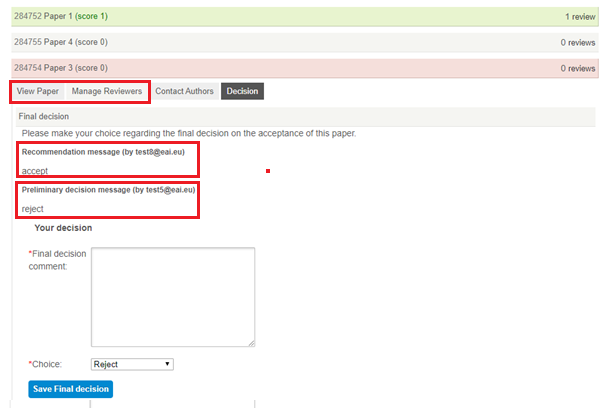
See a screenshot of the form above. The paper will be highlighted (red for reject and green for accept) based on the preliminary decision made by the Track Chair. You have to make the final decision, based on the following information:
- Recommendation message by the TPC member
- Preliminary decision message by Track Chair
- Reviewer ratings and comments in ‘Manage Reviewers’ (you can scroll down to view the Review Details in order to read the full reviews if needed)
- The submission pdf in ‘View Paper’
This information enables you to complete the form and save your final decision on each paper.. You can overrule the previous choice.
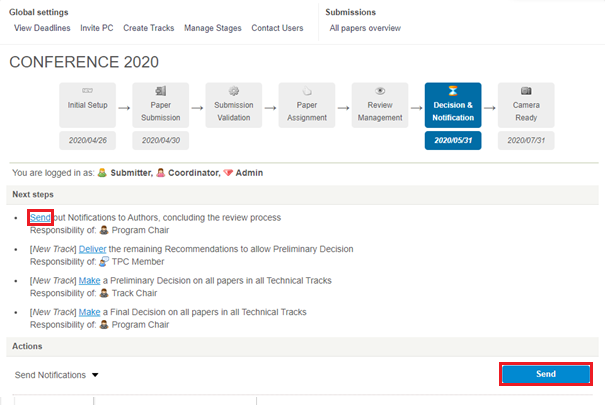
Notifications can only be sent once all papers in the track have their final decisions made. On the homepage of the conference, click on ‘Send‘ (see in red on screenshot below). You can make changes to the acceptance and rejection messages before hitting Send.
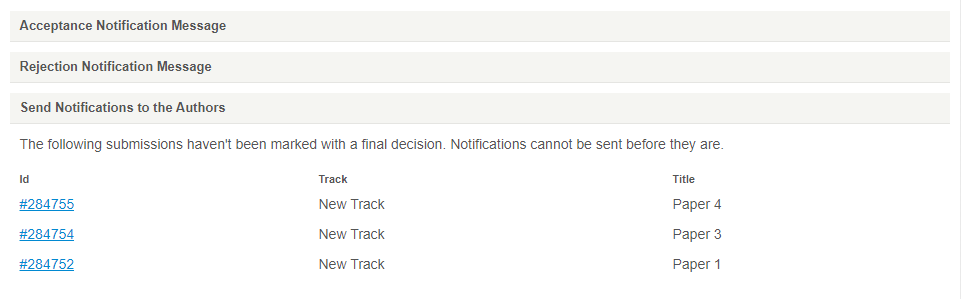
NOTE: If any papers are missing the final decision, you will not be able to send notifications. You can see the papers that are blocking your progress on the bottom of the page (see screenshot below).
Next Stage: Sending Notifications marks the final step of the review process and now the conference is in Camera Ready stage. During this time, authors register and submit the Camera Ready papers – the progress can be viewed in All Papers Overview.


